
Advertisements
So there I was, trying to transfer some important photos from my camera to my laptop, and boom—that dreaded popup appeared. “USB device not recognized.” I swear, I’ve seen this message more times than I’d like to admit! If you’re dealing with this frustrating error right now, don’t worry because I’ve been down this road plenty of times and I’m gonna share everything I’ve learned.
Why Does This Happen in the First Place?
Honestly, the first time I encountered this USB error, I thought my flash drive was totally fried. Turns out, there’s usually a bunch of different reasons why Windows throws this tantrum. Sometimes it’s a faulty USB port, other times it’s outdated drivers acting up.
The error can also pop up when there’s a power supply issue or when the USB controller gets confused. I remember once spending two hours troubleshooting only to realize my USB hub wasn’t getting enough power. Talk about feeling silly! The good news is that most of these problems are fixable without spending a dime.
Quick Fixes You Should Try First
Before diving into the technical stuff, let me share some simple solutions that work more often than you’d think. These are the tricks I always try first whenever I see that “unknown USB device” message.
Unplug the USB device and plug it into a different port. Seriously, this works like magic sometimes.
Restart your computer. I know it sounds cliché, but a fresh boot can reset those USB controllers.
Try the device on another computer to rule out hardware failure.
Disconnect other USB devices temporarily to free up power.
One time my external hard drive kept showing the device descriptor failed error. Turned out the front USB ports on my desktop weren’t delivering enough juice. Plugging it directly into the back ports fixed everything instantly!
Updating and Reinstalling USB Drivers
Alright, so the easy fixes didn’t work for you? No worries, let’s get into the driver situation. Outdated or corrupted USB drivers are probably the most common culprit behind this whole mess.
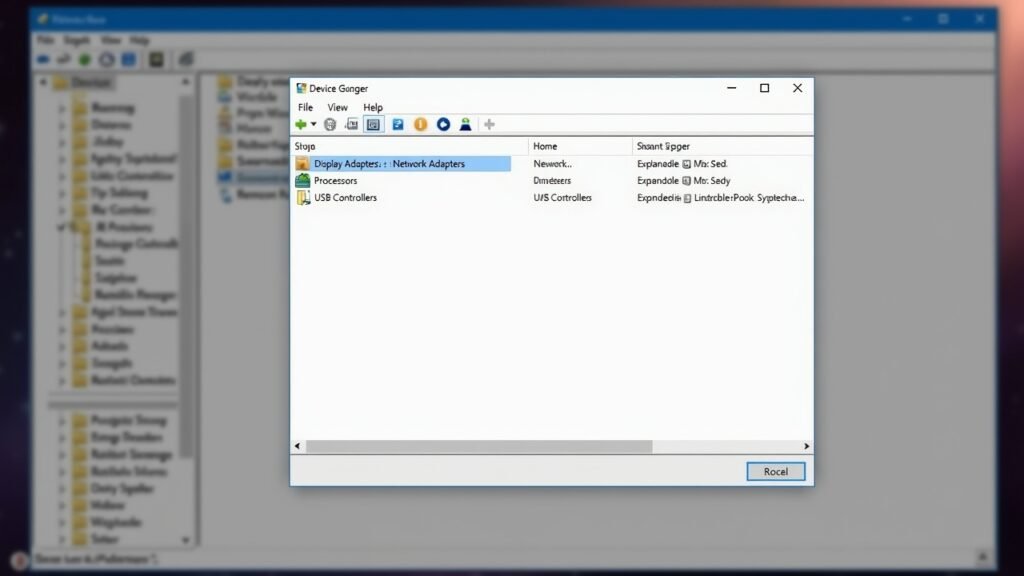
Here’s what worked for me: Open Device Manager by right-clicking the Start button. Look for “Universal Serial Bus controllers” and expand it. You’ll probably see something with a yellow warning triangle—that’s your troublemaker right there. Right-click on it and select “Update driver” or “Uninstall device” then restart your computer.
Windows should automatically reinstall the generic USB hub driver when you reboot. This method has saved me countless times when dealing with unrecognized USB devices. Microsoft has a helpful guide on their support page that walks through additional troubleshooting steps.
The Power Management Trick Nobody Talks About
Here’s something that took me forever to figure out. Windows has this annoying habit of turning off USB ports to save power, which can cause connection issues with your devices.
Go back into Device Manager, find your USB Root Hub, right-click and select Properties. Click on the “Power Management” tab and uncheck that box that says “Allow the computer to turn off this device to save power.” Do this for all USB Root Hub entries you see. This one change fixed my recurring USB problems on my laptop.
When Hardware Might Be the Problem
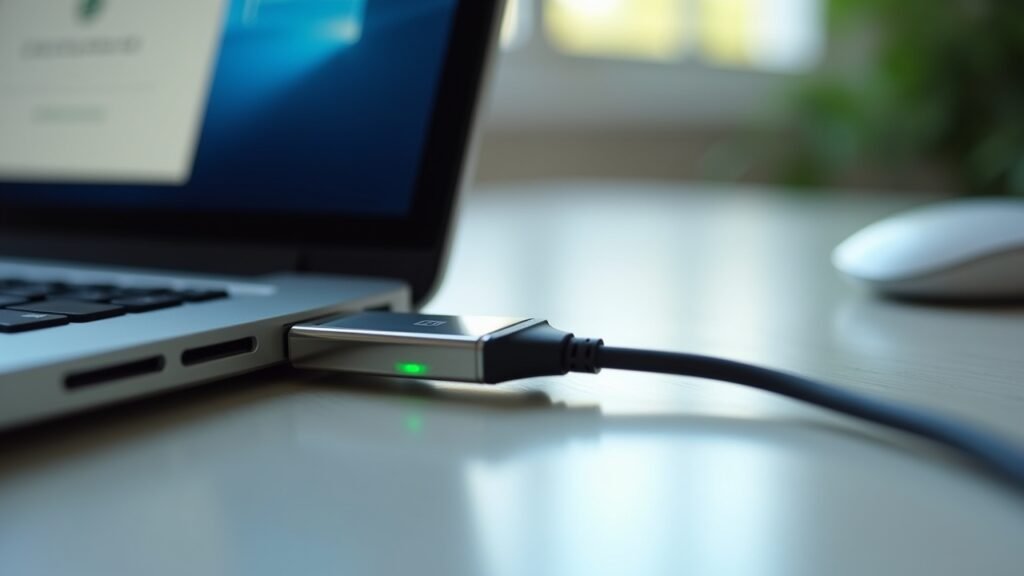
I gotta be honest with you—sometimes the issue isn’t software related at all. I learned this the hard way when I kept troubleshooting a flash drive that was actually physically damaged.
Check your USB cable if you’re using one. Those things wear out faster than you’d expect, especially the cheap ones. Also inspect the USB connector for any bent pins or debris. I once found a tiny piece of lint stuck in my phone’s charging port that was causing connection failures!
For a visual walkthrough of these fixes, this YouTube video does an excellent job explaining the troubleshooting process: How to Fix USB Device Not Recognized in Windows. Sometimes seeing someone do it makes everything click better.
Getting Your USB Working Again
Look, dealing with USB device not recognized errors is frustrating, but it’s rarely the end of the world. Most of the time, a simple port swap or driver update does the trick. Just remember to try the basic solutions first before diving into complicated fixes.
Don’t forget that every computer setup is different, so what worked for me might need some tweaking for your situation. And hey, if nothing works, your device might legitimately need replacing—it happens to the best of us.
Found this helpful? Check out more tech troubleshooting guides over at Fix Fable where we tackle all sorts of everyday computer problems!