
Advertisements
So there I was, five minutes before a crucial meeting, desperately trying to print my presentation notes. The printer just sat there, mocking me with its silence. Sound familiar? According to HP’s support data, printer issues are among the top three tech problems people face at home and in offices!
I’ve been down this road more times than I’d like to admit. Let me share what I’ve learned through years of printer-related frustration and eventual triumph.
Check the Obvious Stuff First
I know, I know. You’re probably rolling your eyes right now. But trust me on this one. The number of times I’ve spent 30 minutes troubleshooting only to realize the paper tray was empty is embarrassing.
Start with the basics: Is the printer turned on? Is it connected to power? These questions might seem silly, but cables get knocked loose all the time. My cat once unplugged my printer for three days before I noticed.
Also check your ink or toner levels. Sometimes printers will refuse to print entirely when one cartridge is low. It’s super annoying, but that’s just how these machines work.
The Connection Conundrum
Wireless printers are awesome until they’re not. Network connectivity problems cause so many print jobs to fail silently. Your printer might show as “ready” but actually be disconnected from your Wi-Fi.
Here’s what works for me: restart both your router and printer. Give them about two minutes to reconnect properly. If you’re using a USB connection, try a different port on your computer. Sometimes ports just go bad randomly.
For detailed wireless troubleshooting, Brother’s support page has excellent step-by-step guides.
Clear That Print Queue
This one catches people off guard constantly. A stuck print job can jam up everything behind it. It’s like one slow car blocking the entire highway.
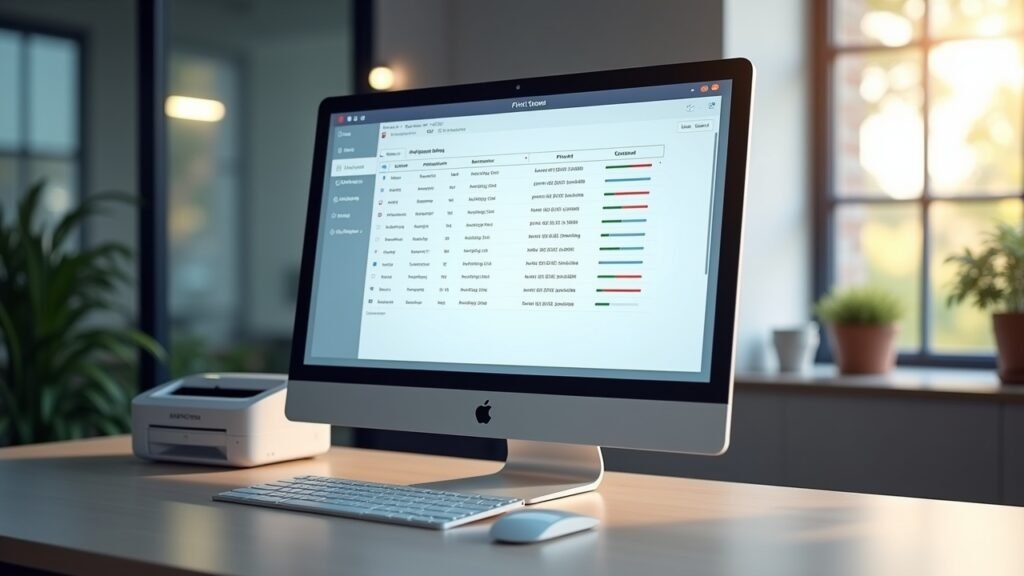
On Windows, go to Settings, then Devices, then Printers & Scanners. Click your printer and select “Open queue.” Cancel everything in there. Start fresh.
I once had a print job from two weeks ago just sitting there, causing chaos. Cleared it out and boom, everything worked perfectly again.
Driver Drama and Software Solutions
Outdated or corrupted printer drivers are sneaky troublemakers. They can stop working after Windows updates, which is frustrating because you didn’t change anything yourself.
Head to your printer manufacturer’s website and download the latest drivers. Don’t rely on Windows to find them automatically. I learned this the hard way when generic drivers made my printer produce garbage output for weeks.
Canon, HP, and Epson all have driver download pages. Just enter your model number and you’re good to go.
Visual Learners, This Is For You
Sometimes reading instructions just doesn’t cut it. I totally get that. Check out this helpful video from Kevin Stratvert that walks through common printer problems: Windows 10 Printer Troubleshooting Guide. It covers most of what we’ve discussed here with actual demonstrations.
When Hardware Is the Problem
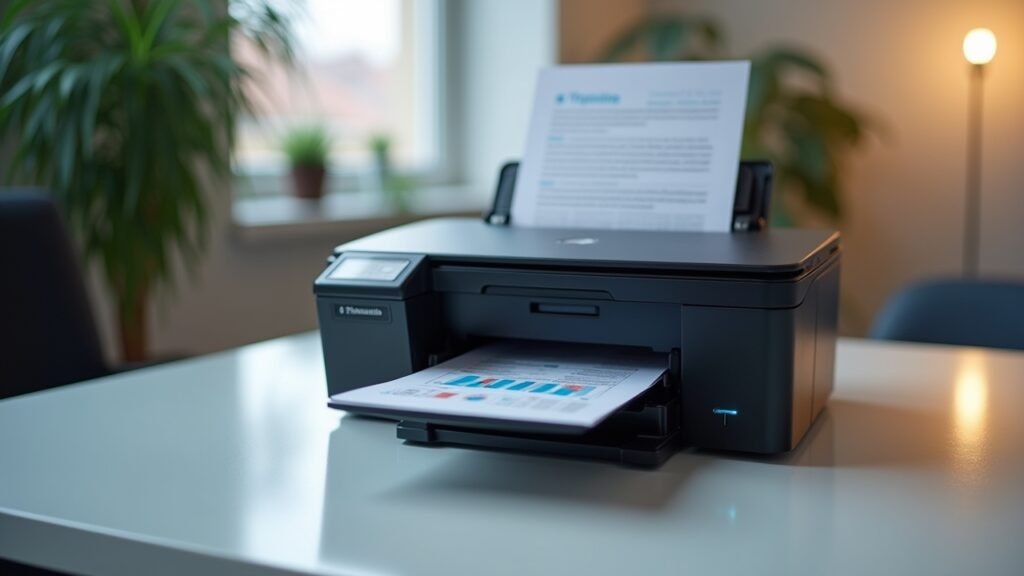
Sometimes printers just break. Print heads clog, rollers wear out, and internal components fail. If your printer is making weird noises or pulling paper incorrectly, you might be looking at a hardware issue.
Try running the printer’s built-in cleaning cycle. Most printers have this option in their menu or through software on your computer. I run mine monthly now as preventive maintenance.
For laser printers, a dirty drum or fuser can cause faded or smeared prints. These parts are usually replaceable if you’re comfortable doing it yourself.
Getting Back to Printing
Look, printer problems are genuinely frustrating. We’ve all been there. But with some patience and systematic troubleshooting, most issues can be resolved without calling tech support or buying a new machine.
Start simple, work your way up to the more complex solutions. Keep your drivers updated and run maintenance cycles occasionally. Your future self will thank you when that important document prints perfectly on the first try.
Got any printer horror stories or tips of your own? We’d love to hear them! And while you’re here, check out other tech troubleshooting guides on Fix Fable. We cover everything from software glitches to hardware headaches.