
Advertisements
I remember the exact moment I became a dark mode convert. It was 2 AM, and I was doom-scrolling through my phone when my wife mumbled something about my screen being “brighter than the sun.” She wasn’t wrong! That blinding white light was basically a lighthouse in our bedroom. Since then, I’ve enabled dark mode on literally everything I own.
Dark mode isn’t just a trendy aesthetic choice anymore. It’s become essential for reducing eye strain, saving battery life on OLED screens, and honestly just looking cooler. Let me walk you through how to activate this game-changing feature across your devices.
Why You Should Switch to Dark Theme
Before we dive into the how-to stuff, let me explain why this matters. Studies suggest that dark backgrounds with light text can reduce eye fatigue, especially in low-light environments. Your phone’s battery will also thank you since dark pixels use less power on OLED and AMOLED displays.
I used to get headaches after long work sessions at my computer. Switching to dark mode across my apps was a total game-changer. Now I can actually stare at screens for hours without feeling like my eyes are gonna fall out.
Enable Dark Mode on Windows
Getting that sleek night mode on Windows is pretty straightforward. Head to Settings, then click on Personalization, and select Colors. You’ll see a dropdown menu where you can choose “Dark” as your default app mode.
Pro tip: I learned this the hard way, but make sure to also enable dark mode in individual apps like Microsoft Office. The system-wide setting doesn’t always catch everything, which drove me absolutely nuts for weeks.
Turn On Dark Mode for macOS
Apple made this super easy on Mac computers. Just click the Apple menu, go to System Preferences, then select General. You’ll find the Appearance options right at the top where you can pick Dark or even Auto if you want it to switch based on time of day.
The auto feature is honestly brilliant. My Mac switches to dark appearance at sunset and I don’t have to lift a finger. Check out Apple’s official guide if you need more details.
Activate Dark Mode on Your Phone
For iPhone users, navigate to Settings, then Display & Brightness. Tap Dark and boom, you’re done. Android varies a bit depending on your manufacturer, but generally it’s under Settings then Display. Look for something called Dark Theme or Night Mode.
Here’s something I wish someone told me earlier. Most social media apps have their own dark mode settings buried in their menus. Instagram, Twitter, and Facebook all need to be toggled separately sometimes. It’s a bit annoying but worth the effort.
Browser Dark Mode Settings
Chrome users can type “chrome://flags” in the address bar and search for “dark mode.” Enable it and restart the browser. Firefox has built-in dark theme options under Settings and Themes. Google’s support page has detailed instructions if you get stuck.
I actually prefer using browser extensions like Dark Reader for more control. It forces dark mode on websites that don’t natively support it, which is pretty neat.
Watch and Learn
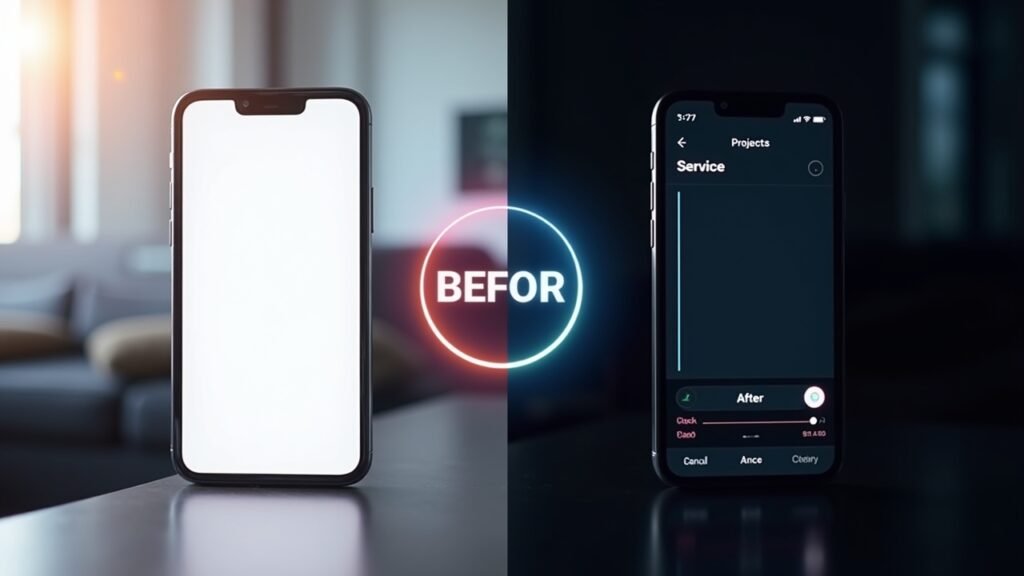
Sometimes visual guides are just easier to follow. This helpful video walks through enabling dark mode across multiple platforms and devices: How to Enable Dark Mode Everywhere. I watched something similar when I first started my dark mode journey and it made the whole process way simpler.
Your Screen, Your Rules
Look, enabling dark mode changed how I interact with technology daily. My eyes feel better, my devices last longer, and everything just looks more sophisticated. Give it a try on one device first and see how it feels.
Remember that you can always customize these settings to match your preferences. Some folks prefer the auto-switching feature while others like manual control. There’s no wrong answer here! If you found this guide helpful, swing by Fix Fable for more tech tips and tutorials that’ll make your digital life easier.