
Netflix Not Working on TV? Here’s How to Fix It Fast
Advertisements
So there I was, Friday night, popcorn ready, blanket on the couch — and Netflix just decided it wasn’t gonna cooperate. The screen was stuck on a loading loop, and honestly, I wanted to throw the remote across the room. If you’ve ever dealt with Netflix not working on your TV, you know exactly that feeling!
Here’s the thing: this happens way more often than you’d think. Whether it’s a black screen, an error code, or the app just crashing, millions of people deal with Netflix streaming issues on their smart TVs every single day. The good news? Most of the time, the fix is surprisingly simple.
Why Netflix Stops Working on Your TV
Before we start mashing buttons, it helps to understand why Netflix acts up in the first place. Usually it comes down to a few common culprits.
- Your internet connection is weak or dropped out entirely.
- The Netflix app is outdated or has a corrupted cache.
- Your TV’s firmware needs an update.
- Netflix’s own servers are experiencing an outage.
- There’s a temporary glitch with your streaming device or smart TV software.
I once spent like 45 minutes troubleshooting my Samsung TV only to find out Netflix was actually down for everyone. Lesson learned — always check Netflix’s Help Center or a site like Downdetector first before you go crazy.
Step 1: Restart Everything (Seriously, Do This First)
I know, I know. “Have you tried turning it off and on again?” But honestly, a simple restart fixes Netflix not loading on TV about 70% of the time in my experience. Unplug your TV from the wall, wait a full 60 seconds, and plug it back in.
While you’re at it, restart your router and modem too. I made the mistake of only restarting the TV once and spent another hour troubleshooting when the real problem was my Wi-Fi acting wonky. A fresh restart clears out temporary data and gives everything a clean slate.
Step 2: Check Your Internet Connection
Netflix recommends at least 5 Mbps for HD streaming and 15 Mbps for 4K content. You can test your speed right from your TV’s browser or use Fast.com, which is actually Netflix’s own speed test tool.
If your speeds are low, try moving your router closer to your TV. Or better yet, use an ethernet cable for a wired connection — it made a huge difference for me when I was getting buffering issues on my LG TV. Wi-Fi can be unreliable, especially if you got other devices hogging the bandwidth.
Step 3: Update or Reinstall the Netflix App
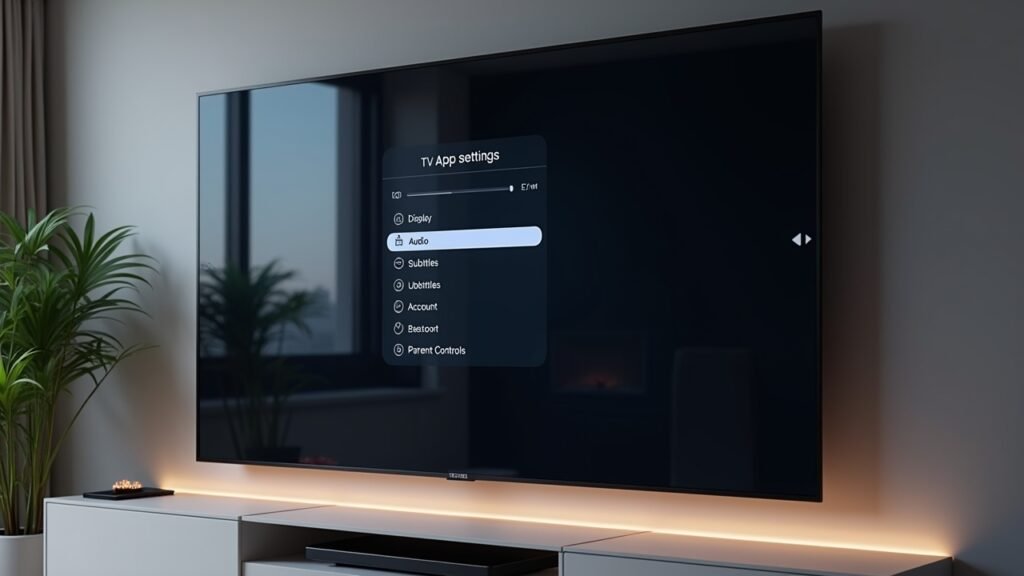
An outdated Netflix app is a super common reason for crashes and error codes. Head to your TV’s app store and check if there’s an update available. On most smart TVs, you can find this in Settings > Apps > Netflix.
If updating doesn’t work, try uninstalling and reinstalling the app completely. I had to do this on my Roku TV last year after the Netflix app kept showing a black screen. Reinstalling it was like a fresh start, and everything worked perfectly after that.
Don’t Forget Your TV’s Firmware
This one gets overlooked all the time. Your TV itself might need a software update. Go to your TV’s settings menu, look for “Software Update” or “System Update,” and install anything that’s pending. Outdated firmware can cause all sorts of app compatibility problems.
Step 4: Sign Out and Sign Back In

Sometimes your Netflix account session just gets corrupted. It sounds weird, but signing out of Netflix on your TV and logging back in can clear up error codes like NW-2-5 or UI-800-3. These are some of the most common Netflix error codes, and Netflix has a full list of what each one means.
After signing back in, try playing something simple first — like a short episode of a show — to make sure everything’s running smooth.
Back to Binge-Watching in No Time
Look, dealing with Netflix not working on your TV is annoying, but it’s almost never a permanent problem. Start with the basics: restart, check your internet, update your apps, and sign back in. That covers probably 95% of cases.
Every TV and setup is a little different though, so don’t be afraid to adapt these steps to your specific situation. And if you found this helpful, make sure to check out more troubleshooting guides and tech tips over on the Fix Fable blog — we’ve got tons of posts to help you fix the stuff that drives you nuts!