
Advertisements
Here’s a stat that honestly kept me up at night: kids between 8 and 12 spend nearly 5 hours a day on screens. Five hours! When I first gave my daughter her iPhone, I thought I was being a cool, tech-savvy parent. Turns out, I was basically handing her the keys to the entire internet without a single guardrail in place.
Setting up parental controls on iPhone isn’t just about being overprotective or nosy. It’s actually about creating healthy digital boundaries that let your kid explore safely. And trust me, I learned this the hard way after discovering my 10-year-old had somehow stumbled onto some pretty questionable YouTube rabbit holes.
Getting Started with Screen Time Settings
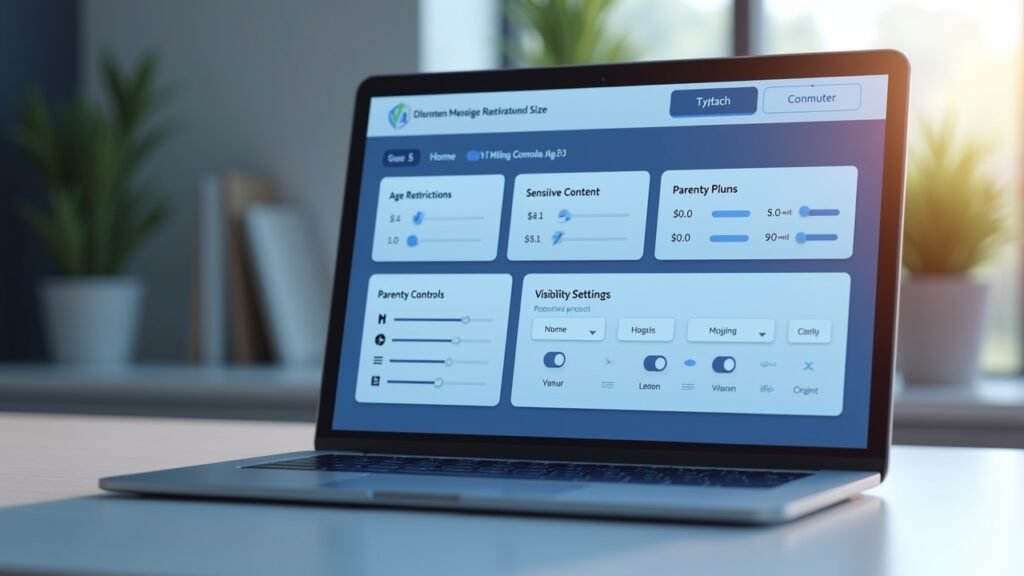
So here’s the thing. Apple actually built a pretty robust system called Screen Time right into iOS, and it’s honestly been a lifesaver. You’ll find it tucked away in your Settings app, and once you dive in, the options are kinda overwhelming at first.
I remember sitting there for like an hour just clicking through everything, feeling like I needed a degree in computer science. But stick with me here, it gets easier once you understand the basics. The first thing you wanna do is set up a Screen Time passcode that’s different from your regular phone password.
Don’t make my mistake of using your birthday. Kids are smart, and they will figure it out. My son cracked my code in literally two days, which was both impressive and terrifying.
Setting Up Downtime and App Limits
Downtime is basically your new best friend. This feature lets you schedule specific hours when only the apps you choose will be available. We use it during homework time and after 8 PM on school nights.
App limits are where things get real specific. You can set daily time limits for entire categories like social media or games. Or you can target individual apps if, say, your kid is absolutely obsessed with TikTok like mine was.
Pro tip I wish someone had told me earlier: start with generous limits and gradually tighten them. Going from unlimited to strict overnight caused some serious drama in our house.
Content and Privacy Restrictions That Actually Matter
Under Content & Privacy Restrictions, you’ll find the heavy-hitting stuff. This is where you can block explicit content, prevent app downloads without permission, and restrict web browsing. I was shocked when I realized the default settings basically allow everything.
The web content filtering options let you choose between unrestricted, limit adult websites, or allowed websites only. For younger kids, I’d honestly recommend starting with the allowed websites only option and adding sites as needed. Yeah, it’s more work upfront, but the peace of mind is worth it.
You can also disable location sharing, which I didn’t even think about until a friend mentioned her kid had been sharing their location with random gaming friends. Yikes.
Using Family Sharing for Remote Management
Here’s a game-changer I discovered way too late. Family Sharing lets you manage your kid’s Screen Time settings directly from your own phone. No more grabbing their device and typing in codes while they hover anxiously.
You can approve or deny app download requests, see activity reports, and adjust settings whenever needed. The activity reports were honestly eye-opening for me. I had no idea how much time was being spent on certain apps until I saw the weekly breakdown.
For a helpful visual walkthrough, check out this video that explains the setup process really well:
How to Set Up Parental Controls on iPhone
Common Mistakes to Avoid

Don’t set everything up without talking to your kid about it first. Seriously, this backfired on me spectacularly. My daughter felt like I didn’t trust her, and we had to have a whole conversation about digital safety versus surveillance.
Also, remember to update your settings periodically. Kids grow up, circumstances change, and what worked for a 9-year-old isn’t gonna cut it for a 12-year-old. I review our settings every few months now and adjust accordingly.
Your Digital Parenting Journey Starts Now
Look, no parental control system is perfect, and kids will always find workarounds eventually. The goal isn’t to create an impenetrable fortress but to establish reasonable boundaries while keeping communication open. Start with the basics, tweak as you go, and don’t beat yourself up if you mess something up along the way.
Every family’s needs are different, so customize these settings to fit your situation. And hey, if you found this helpful, swing by Fix Fable for more tech tips that actually make sense for real parents navigating this wild digital world!