Advertisements
So there I was, staring at my Android phone like it had personally betrayed me. Apps crashing left and right, storage somehow full despite deleting half my photos, and everything running slower than my grandma’s old dial-up connection. Sound familiar?
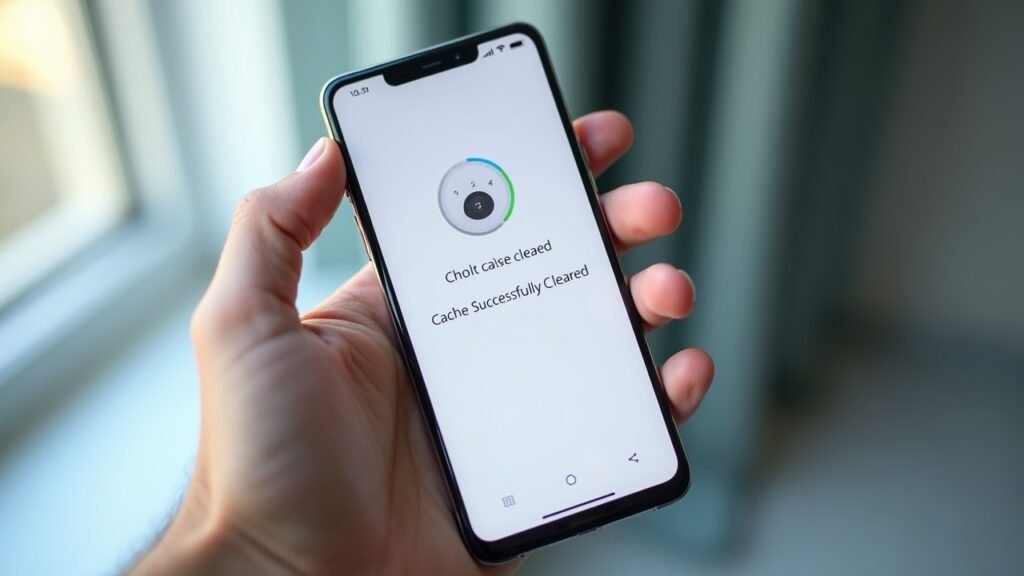
Turns out, the culprit was something I’d been ignoring for months: cached data. Learning to clear cache on Android literally transformed my phone’s performance overnight!
What Even Is Cache, Anyway?
Okay, before we dive in, let me explain this in plain English. Cache is basically temporary files that apps store on your device to load faster. Think of it like keeping your favorite snacks on your desk instead of walking to the kitchen every time you’re hungry.
The problem? These files pile up like dirty laundry. Over time, they can eat up gigabytes of storage and actually slow things down. Pretty ironic, right? I learned this the hard way when my phone started freezing during important calls. Super embarrassing when you’re trying to sound professional!
According to Google’s official support page, clearing cache regularly can help resolve app issues and free up valuable storage space.
How to Clear App Cache on Android
Alright, let’s get to the good stuff. Here’s my go-to method for clearing cache on individual apps:
Open your Settings app (the little gear icon)
Tap on “Apps” or “Applications” depending on your device
Select the app that’s being problematic
Tap “Storage” then hit “Clear Cache”
Boom! That’s literally it. I usually start with the apps I use most, like Chrome, Instagram, and Facebook. These bad boys hoard cached data like nobody’s business.
One time, I cleared the cache on my browser and freed up almost 2 gigs of space. Two whole gigabytes! I couldn’t believe how much junk had accumulated in there.
Clear Cache vs. Clear Data: Don’t Make My Mistake
Here’s where I messed up big time. There’s a button that says “Clear Data” right next to “Clear Cache,” and younger me thought, “Why not tap both?”
Terrible idea. Clearing data wipes everything – your login info, preferences, saved progress. I lost all my game achievements and had to remember like fifteen passwords. So yeah, stick to clearing cache only unless you genuinely want to reset an app completely.
Clearing Cache for All Apps at Once
Now, if you’re feeling ambitious and want to do a full cleanup, some Android phones let you clear cached data for all apps simultaneously. This feature’s been removed from newer Android versions, but here’s what you can try:
Go to Settings, then Storage
Look for “Cached data” option
Tap it and confirm to clear everything
On newer devices, you might need a third-party app or just clear them individually. Slightly annoying, but what can you do?
When Should You Clear Your Android Cache?

I’ve gotten into the habit of clearing cache about once a month. But honestly, you should definitely do it when:
Your phone’s running slow
You’re low on storage space
Apps keep crashing or acting weird
Websites aren’t loading properly
Trust me, it’s become part of my phone maintenance routine now. Like changing your car’s oil, but way easier!
Helpful Video Tutorial
If you’re more of a visual learner like me, this YouTube video does a fantastic job walking through the process: How to Clear Cache on Android. Sometimes watching someone actually do it makes things click better, you know?
Your Phone Will Thank You
Look, clearing cache on Android isn’t rocket science, but it’s one of those simple maintenance tasks that can make a huge difference. My phone went from sluggish and frustrating to smooth and responsive after I started doing this regularly.
Give it a shot and see how much space you can recover. You might be surprised! And hey, if you found this helpful, stick around and check out more tech tips over at Fix Fable. We’ve got tons of guides to help you get the most out of your devices.