Advertisements
So there I was, staring at my phone like it had personally betrayed me. The little Android logo just spinning and spinning, mocking my existence. If you’ve ever experienced your Android device frozen on the startup screen, you know exactly what I’m talking about!
This happened to me last summer with my Samsung Galaxy, and honestly, I thought the phone was toast. But after some panicked Googling and a few failed attempts, I figured it out. Let me walk you through what actually works when your Android is stuck in a boot loop.
Why Does This Even Happen?
Before we dive into fixes, it helps to understand why your phone decided to throw a tantrum. There’s usually a handful of culprits behind this annoying problem.
Sometimes it’s a bad app update that corrupted something important. Other times, a failed system update leaves your device in limbo. I’ve also seen phones get stuck after running out of storage space during critical operations, which was actually my problem.
Hardware issues can cause this too, though that’s less common. A failing battery or damaged components might prevent proper booting. The good news? Most cases are software-related and totally fixable at home.
Try a Force Restart First
This sounds obvious, but hear me out. A regular restart isn’t the same as a force restart. You gotta hold that power button down for like 10-15 seconds until the screen goes completely dark.
On some devices, you’ll need to hold both the power and volume down buttons simultaneously. My old Pixel required this combo, and it took me way too long to figure that out. Check Google’s official support page for your specific device’s button combination.
Boot Into Safe Mode
If the force restart didn’t work, safe mode is your next best friend. This loads Android with only essential system apps, which helps identify if a third-party app is causing the boot screen freeze.
To enter safe mode, power off your device completely. Then hold the power button, and when the manufacturer logo appears, press and hold the volume down button until startup completes. You should see “Safe Mode” in the corner of your screen.
Once you’re in, uninstall any recently downloaded apps that might be problematic. I once installed a sketchy battery optimizer app that completely wrecked my phone’s ability to boot normally. Lesson learned, folks.
Wipe the Cache Partition
Now this one’s a bit more advanced, but it’s saved my bacon multiple times. The cache partition stores temporary files that can sometimes get corrupted. Clearing it doesn’t delete your personal data, which is super important.
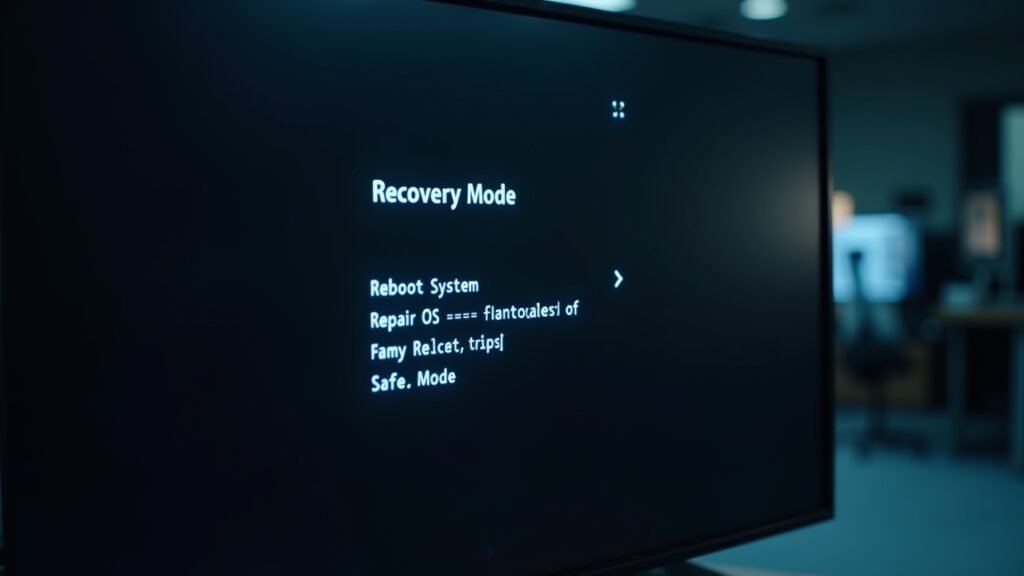
You’ll need to boot into recovery mode for this. Turn off your phone, then hold the power button and volume up button together. The exact combo varies by manufacturer, so you might need to look it up for your specific model on XDA Developers.
Once in recovery mode, use the volume buttons to navigate to “Wipe cache partition” and confirm with the power button. Let it do its thing and restart.
Watch This Helpful Tutorial
Sometimes seeing the process makes everything clearer. This video from Tech James on YouTube walks through the recovery mode process visually. Definitely worth a watch if you’re feeling nervous about trying this yourself.
Factory Reset as a Last Resort

I really hate recommending this because it erases everything. But if nothing else works, a factory reset through recovery mode might be your only option. Make sure you’ve exhausted all other possibilities first.
In recovery mode, select “Wipe data/factory reset” and confirm. Your phone will be restored to its original state. It’s painful, but at least you’ll have a working device again.
Getting Back on Track
Dealing with an Android boot loop is incredibly frustrating, but most cases are totally fixable without professional help. Start simple with force restarts, then work your way up to safe mode and cache clearing. Save that factory reset for when you’ve truly tried everything else.
Remember to regularly back up your data so a situation like this doesn’t become catastrophic. And maybe avoid those sketchy optimization apps like I should’ve. If you found this helpful or want more troubleshooting tips, swing by Fix Fable for more guides on fixing tech headaches!