Advertisements
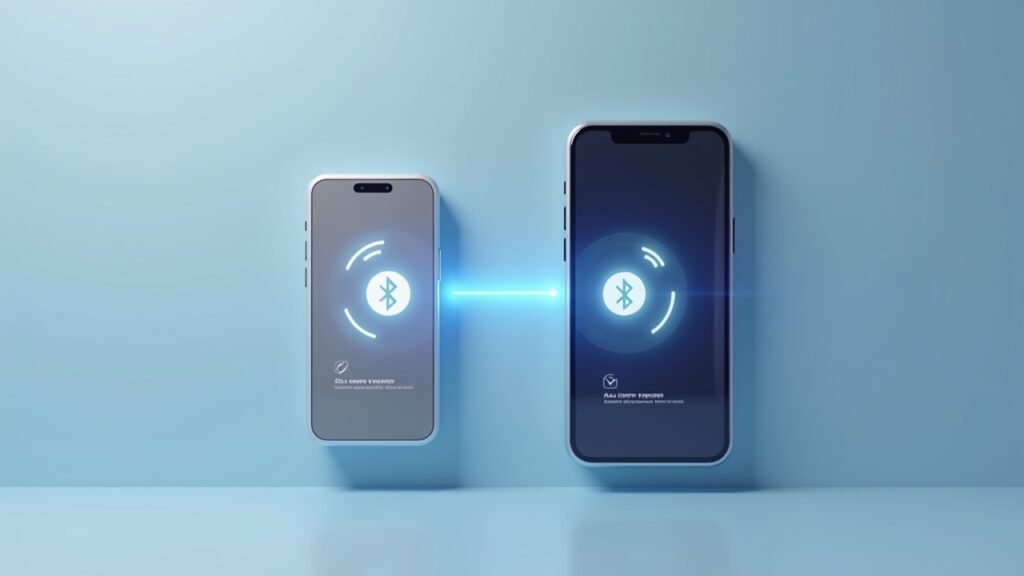
So there I was, ready to blast my favorite playlist through my wireless headphones, and boom – nothing. My Bluetooth just decided to take a vacation without telling me! If you’ve ever stared at your Windows computer wondering why your Bluetooth devices won’t connect, trust me, you’re not alone.
Bluetooth issues on Windows are super common, and they can be incredibly frustrating. I’ve spent countless hours troubleshooting this problem on my own machines and helping friends fix theirs. Let me walk you through everything I’ve learned along the way.
Check If Bluetooth Is Actually Turned On
I know this sounds obvious, but hear me out. I once spent two hours trying to fix my Bluetooth only to realize it was simply turned off. Windows can be sneaky like that, especially after updates.
Head to your Settings by pressing Windows + I, then click on “Devices” and look for the Bluetooth toggle. Make sure it’s switched on! You can also check the Action Center by clicking the notification icon in your taskbar – there should be a Bluetooth tile there too.
Sometimes Windows will disable Bluetooth to save power, which is honestly kinda annoying. You might want to check your power settings if this keeps happening to you.
The Driver Dance – Updating Your Bluetooth Drivers
Nine times out of ten, when my Bluetooth stops working, it’s a driver issue. Drivers are like translators between your hardware and Windows, and they can get outdated or corrupted pretty easily.
Here’s what I do: right-click on the Start button and select Device Manager. Look for “Bluetooth” in the list and expand it. Right-click on your Bluetooth adapter and select “Update driver.” Choose the automatic search option first – Windows might find something newer.
If that doesn’t work, I’d recommend visiting your computer manufacturer’s website directly. They usually have the latest drivers available for download. Microsoft’s support page on fixing Bluetooth problems is also super helpful for this stuff.
When Drivers Get Corrupted
Sometimes you gotta go nuclear and completely uninstall the driver. In Device Manager, right-click your Bluetooth adapter and choose “Uninstall device.” Restart your computer and Windows should automatically reinstall it. This has saved me more times than I can count!
Running the Windows Bluetooth Troubleshooter
Windows actually has a built-in troubleshooter that’s pretty decent. Go to Settings, then Update & Security, and click on Troubleshoot. Find the Bluetooth troubleshooter and run it.
I’ll be honest, sometimes it fixes things and sometimes it just shrugs and says everything’s fine when it clearly isn’t. But it’s worth a shot because when it works, it’s like magic. The troubleshooter can detect and fix common problems automatically.
Restarting the Bluetooth Support Service
This one’s a bit more technical but stick with me. Press Windows + R, type “services.msc” and hit Enter. Scroll down until you find “Bluetooth Support Service.”
Right-click it and select “Restart.” If it wasn’t running at all, click “Start” instead. You should also make sure the startup type is set to “Automatic” so it runs when Windows boots up. This fixed my connection issues more than once!
Check for Windows Updates
I used to ignore Windows updates because they always seemed to come at the worst times. But honestly, they often contain fixes for Bluetooth bugs and compatibility issues.
Go to Settings, then Update & Security, and click “Check for updates.” Let it download and install whatever it finds. Yeah, it might take a while, but it’s worth it. A reboot is usually required after updates, so save your work first!
For a visual walkthrough of these fixes, this YouTube video breaks it down nicely: How to Fix Bluetooth Not Working on Windows. I found it really helpful when I was first learning this stuff.
Getting Your Wireless Connection Back on Track
Bluetooth problems on Windows can feel overwhelming at first, but most issues can be fixed with these basic troubleshooting steps. Start simple – check if it’s on, update your drivers, run the troubleshooter, and restart those services.
Remember, every computer setup is a bit different, so what works for me might need some tweaking for your situation. Don’t be afraid to try multiple solutions!
If you found this guide helpful, check out more tech tips and troubleshooting guides over at Fix Fable. We’ve got tons of articles to help you navigate those frustrating tech moments!