External Hard Drive Not Showing? Here’s How I Fixed It (And How You Can Too)
Advertisements
So there I was, panicking at 11 PM on a Sunday night. I had a massive presentation due Monday morning, all my files were on my external hard drive, and my computer just… refused to see it. Nothing. Nada. The external hard drive not showing up is honestly one of the most terrifying tech problems you can run into, especially when your entire digital life is sitting on that little box.
Trust me, I’ve been through this nightmare more times than I’d like to admit. And after years of troubleshooting — sometimes successfully, sometimes with a lot of tears — I’ve put together a solid game plan for when this happens.
First Things First: Check the Obvious Stuff
I know, I know. It sounds dumb. But you’d be amazed how many times I’ve spent twenty minutes freaking out only to realize my USB cable was barely plugged in.
Try a different USB port. Seriously, just do it. I once had a dead USB port on my laptop for months and didn’t even realize it because I never used that side.
Also, swap out the cable if you can. Cheap USB cables die all the time, and a faulty cable is one of the most common reasons an external hard drive is not detected. If you’re using a USB hub, try connecting directly to your computer instead — hubs can be flaky with power-hungry devices.
Check Disk Management (Windows Users, This One’s for You)
Okay so here’s where things get a little more hands-on. If your external HDD isn’t showing up in File Explorer, it might still be recognized by your system — it’s just hiding.
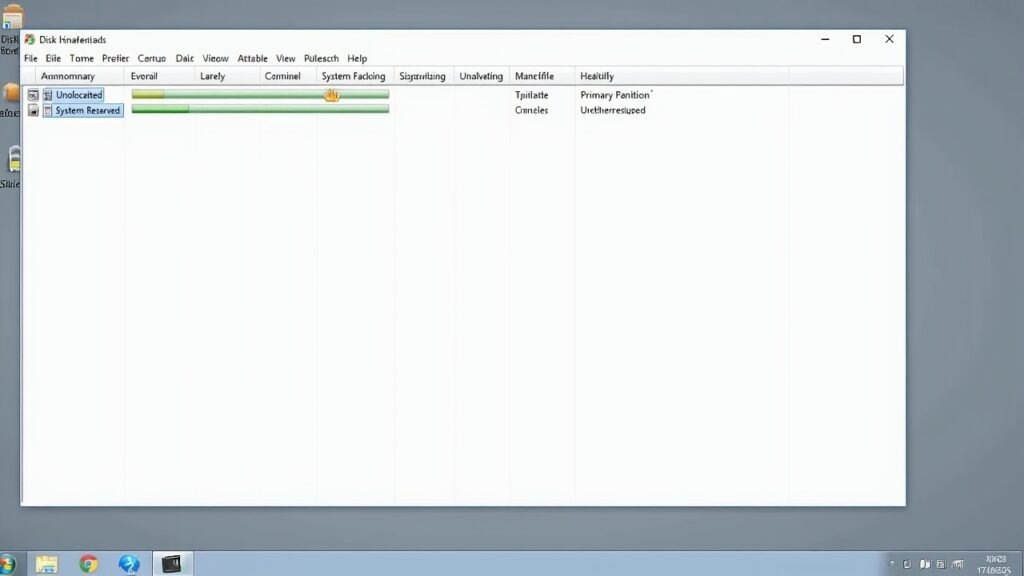
Right-click on the Start button and select Disk Management. Look for your drive in the list at the bottom. If it shows up there but doesn’t have a drive letter assigned, that’s your problem right there!
- Right-click the drive in Disk Management
- Select “Change Drive Letter and Paths”
- Click “Add” and assign a letter
- Hit OK and check File Explorer again
I remember the first time I discovered this trick — felt like an absolute genius. Microsoft has a helpful guide on troubleshooting external drives that walks through this in more detail.
Update or Reinstall Your Drivers

This one bit me hard last year. My portable hard drive was working fine on my wife’s laptop but completely invisible on mine. Turns out my USB drivers were corrupted after a Windows update gone wrong.
Open Device Manager, expand “Disk drives” and “Universal Serial Bus controllers,” and look for anything with a yellow warning triangle. Right-click the problematic device and choose “Update driver.” If that doesn’t work, try uninstalling it completely and restarting your PC — Windows will reinstall the driver automatically.
The Drive Might Need to Be Initialized or Formatted
Now here’s where things get a bit scary. If your external drive is brand new, it might show up in Disk Management as “unallocated” or “not initialized.” This is totally normal and nothing to worry about.
But if it’s a drive with existing data and it’s asking to be formatted — stop. Don’t format it unless you’re okay losing everything on it. I made that mistake once with a drive full of vacation photos. Still hurts to think about, honestly.
If you need to recover data from a drive that’s not showing properly, tools like Recuva can sometimes pull files from drives that seem unreadable. It’s saved my bacon more than once.
Mac Users: Don’t Feel Left Out
If your external hard drive is not showing on Mac, open Disk Utility (you can find it through Spotlight search). Your drive might appear there even if it’s not on the desktop or in Finder. Sometimes running First Aid on the drive fixes whatever’s going wrong with the file system.
Also worth checking — if the drive is formatted as NTFS, your Mac can read it but won’t mount it properly for writing. That’s been a gotcha for a lot of people I know.
When All Else Fails, Don’t Lose Hope
Look, most of the time an external drive not recognized is a software issue, not a dead drive. Work through these steps methodically and you’ll probably get it sorted. If the drive is making clicking noises though, that’s a hardware failure — and you might need professional data recovery services.
The biggest lesson I’ve learned? Always keep backups in more than one place. Every single time. If you found this helpful, we’ve got tons more troubleshooting guides over at Fix Fable — come hang out and save yourself some future headaches!