Advertisements
So there I was, coffee in hand, ready to crush my morning emails when my laptop decided it didn’t want to connect to WiFi anymore. Talk about frustrating! If you’re dealing with the same nightmare right now, don’t worry. I’ve been through this more times than I’d like to admit, and I’m gonna walk you through everything I’ve learned.
First Things First: The Quick Fixes
Before we dive into the complicated stuff, let’s try the basics. You’d be surprised how often these simple steps actually work. I once spent two hours troubleshooting only to realize my WiFi was accidentally turned off by a keyboard shortcut!
- Check if airplane mode is turned on (look for a little plane icon in your taskbar)
- Make sure your WiFi switch is actually on – some laptops have physical switches on the side
- Press Fn + the WiFi key (usually F2, F3, or F12 depending on your laptop brand)
- Restart your laptop and router – yeah, the classic “turn it off and on again” actually works sometimes
I remember feeling pretty dumb when I discovered my cat had stepped on my keyboard and enabled airplane mode. But hey, it happens to the best of us!
Check Your Network Adapter Settings
If the quick fixes didn’t work, we gotta dig a little deeper. Your wireless network adapter might be disabled or acting up. Here’s what you need to do:
Right-click on the Start button and select “Device Manager.” Look for “Network adapters” and expand it. You should see your WiFi adapter listed there – it usually has “Wireless” or “WiFi” in the name. If there’s a yellow triangle or red X next to it, that’s your problem right there.
Try right-clicking on it and selecting “Enable device” if it’s disabled. You can also try “Update driver” to see if there’s a newer version available. Sometimes Windows Update messes things up by installing a bad driver, so you might need to roll back to a previous version. Microsoft has a helpful guide on fixing WiFi connection issues that goes into more detail.
The Network Troubleshooter (Your New Best Friend)
Windows actually has a built-in tool that can diagnose and fix WiFi problems automatically. I was skeptical about it at first, but it’s actually saved me a bunch of times.
Go to Settings > Network & Internet > Status, then click on “Network troubleshooter.” Let it do its thing. The troubleshooter will scan for issues with your wireless connection and attempt to fix them automatically. It might reset your network adapter or clear some corrupted settings that was causing the problem.
Reset Your Network Settings Completely
When nothing else works, sometimes you just gotta start fresh. This is what finally fixed my laptop after a Windows update broke everything last year. Fair warning though – this will remove all your saved WiFi passwords, so make sure you know them before doing this!
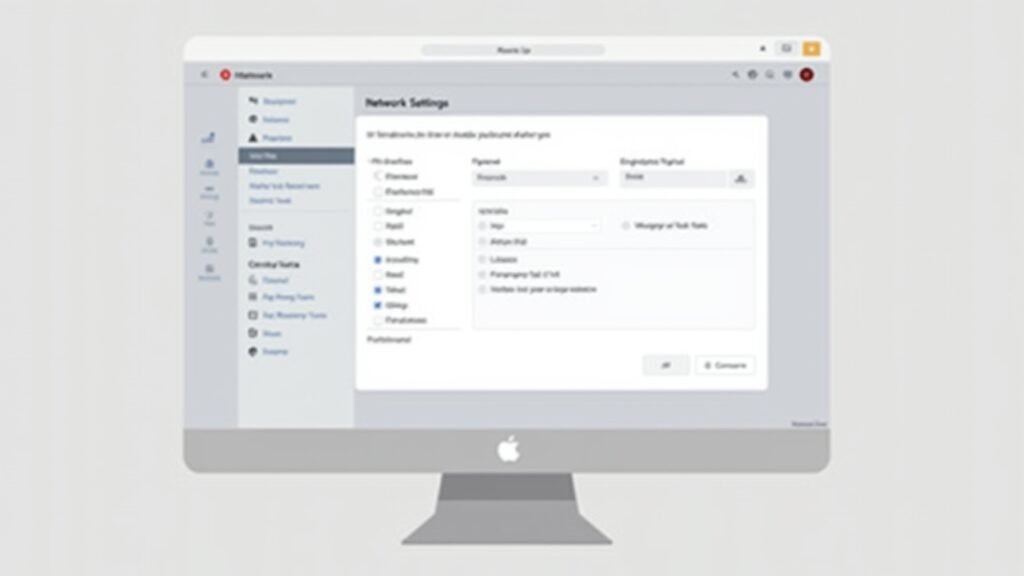
Go to Settings > Network & Internet > Status and scroll down to find “Network reset.” Click on it and then hit “Reset now.” Your laptop will restart and all network settings will be restored to default. After it boots up, you’ll need to reconnect to your WiFi network from scratch.
Helpful Video Tutorial
If you’re more of a visual learner like me, I’d recommend checking out this helpful video on YouTube: How to Fix WiFi Not Working in Windows. Sometimes seeing someone actually do the steps makes it way easier to follow along.
When Hardware Might Be the Culprit
If you’ve tried everything and your laptop WiFi still isn’t working, it might be a hardware issue. The wireless card inside your laptop could be failing or loose. This happened to my old Dell after I dropped it – the internal WiFi card got disconnected.
You can try using a USB WiFi adapter as a workaround. They’re pretty cheap on Amazon and work really well. It’s not the most elegant solution, but it gets the job done while you figure out if you need to repair or replace your laptop.
Getting Back Online

Look, dealing with WiFi problems on your laptop is super annoying, but it’s usually fixable with a little patience. Remember to start with the simple stuff before going nuclear with network resets. And if all else fails, a USB WiFi adapter can be a lifesaver.
Have you found other solutions that worked for you? We’d love to hear about your experiences! Check out more tech troubleshooting tips and tricks over at Fix Fable – we’ve got tons of guides to help you navigate the wonderful world of tech problems.