Advertisements
Let me tell you something that changed my digital life forever. I used to dread backing up my iPhone because iTunes made me want to throw my laptop out the window! Seriously though, that clunky software crashed on me more times than I can count. So I went on a mission to find better ways to protect my precious photos and data.
Here’s the thing – about 28% of smartphone users have never backed up their phone. That’s terrifying when you think about all those memories just waiting to be lost! Today I’m gonna share the methods I’ve discovered that actually work without touching iTunes.
Using iCloud Backup: The Easiest Route
Okay so this one’s probably the most obvious but stay with me. iCloud has been my go-to since I discovered I didn’t need my computer at all. You just go to Settings, tap your name at the top, then iCloud, and finally iCloud Backup.
I remember the first time I set this up properly. I was at a coffee shop, my phone connected to WiFi, and boom – everything started backing up automatically. The free 5GB fills up quick though, fair warning. I ended up paying for the 200GB plan because my photo library is absolutely ridiculous at this point.
The backup happens overnight while you’re charging which is pretty slick. Just make sure you’re connected to WiFi or you’ll eat through your data plan real fast.
Third-Party Software That Actually Works
Now here’s where things get interesting. I stumbled upon some third-party options when iCloud wasn’t cutting it for me. Programs like iMazing and Intego let you backup your iPhone to your computer without the iTunes nightmare.
I was skeptical at first, not gonna lie. But iMazing specifically has saved my butt more than once. You can browse your backups, extract specific files, and even transfer stuff between devices. It’s way more flexible than anything Apple offers natively.
The interface is actually intuitive which shocked me. I’m not exactly tech-savvy despite what my kids think. These tools also let you do incremental backups so you’re not waiting hours every single time.
Google Drive and Other Cloud Options
Here’s a little trick I learned the hard way. You can use Google Drive to backup your photos and contacts separately. It’s not a complete iPhone backup but it protects what matters most to most people.
I set up Google Photos on my iPhone after losing some vacation pictures during a botched iTunes sync. Never again! The automatic photo backup runs in the background and honestly the search feature in Google Photos is incredible. I can find photos by typing “beach” or “birthday” and it actually works.
Dropbox works similarly if you prefer that ecosystem. The point is you got options beyond Apple’s walled garden.
Using Finder on Mac (Post-Catalina)
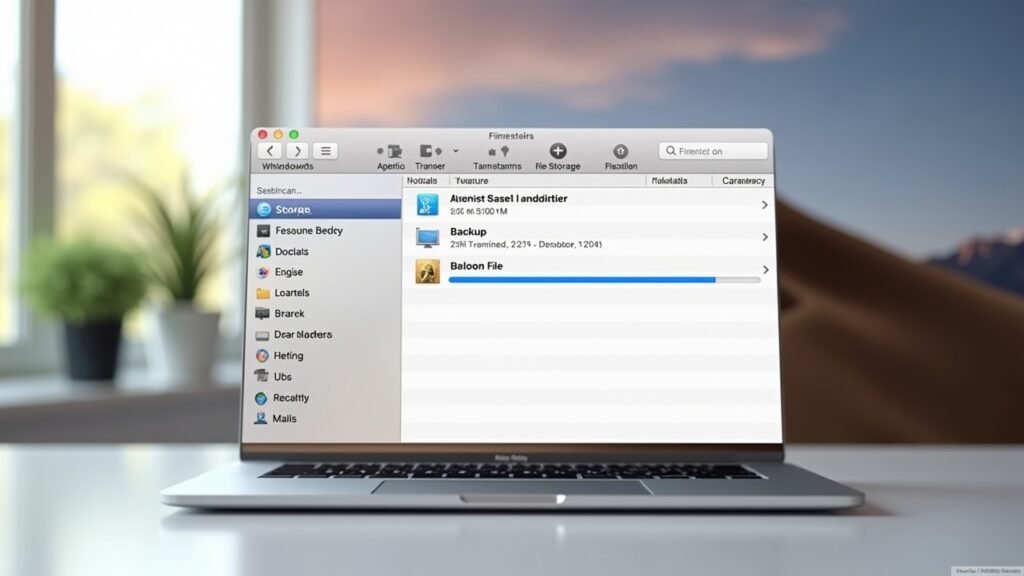
So Apple actually killed iTunes on Mac back in 2019 with macOS Catalina. Now you use Finder to backup your iPhone which is honestly way better. Just plug in your phone, open Finder, and your device shows up in the sidebar.
Click on your iPhone and you’ll see backup options right there. You can choose to encrypt your backup which I highly recommend – it saves your passwords and health data too. I forgot to check that box once and had to re-enter every single password. Learn from my mistakes people!
Helpful Video Resources
If you’re more of a visual learner like me, there’s some great tutorials on YouTube. Check out this helpful walkthrough on backing up iPhone without iTunes that breaks down each method step by step. Sometimes seeing someone actually do it makes all the difference.
Your Data Deserves Better Protection
Look, the bottom line is your iPhone holds your entire life pretty much. Photos of your kids, important documents, all your contacts – it’s all there. Don’t let a single point of failure like iTunes be the reason you lose everything.
I’d recommend using multiple backup methods honestly. I do iCloud plus a local backup through iMazing. Belt and suspenders, you know? Find what works for your situation and stick with it.
Got questions or want more tech tips that don’t make your head spin? Come hang out with us at Fix Fable where we break down this stuff in plain English. Your future self will thank you for taking backups seriously!