Advertisements
So here’s the thing – I spent an embarrassing amount of time trying to figure out why my AirPods wouldn’t connect to my Windows laptop. Like, we’re talking a solid hour of frustration before I finally cracked the code. Turns out, millions of people struggle with this exact same issue every single day!
If you’ve got a pair of AirPods and a Windows PC, you’re probably wondering if they can even work together. Spoiler alert: they absolutely can, and I’m gonna walk you through exactly how to do it. Trust me, once you get this down, it’s actually pretty simple.
Why Your AirPods Aren’t Connecting (And How to Fix It)
Before we dive into the step-by-step stuff, let me share my biggest mistake. I kept trying to pair my AirPods while the lid was closed. Rookie error, I know! The AirPods need to be in pairing mode with that little white light flashing, otherwise your Windows computer won’t even see them.
Another thing that tripped me up was having Bluetooth turned off on my laptop. Sounds obvious, right? But Windows sometimes disables Bluetooth after updates, so it’s worth double-checking. You can verify this by going to Settings and looking for the Bluetooth toggle.
Step-by-Step Instructions to Pair AirPods with Windows 10 and 11
Alright, let’s get into the actual process. First things first, open your Windows Settings by pressing the Windows key and clicking that little gear icon. From there, navigate to “Bluetooth & devices” – this is where all the magic happens.
Now grab your AirPods case and open the lid. Here’s the crucial part that I missed initially: press and hold the button on the back of the case until that status light starts flashing white. This puts your AirPods into Bluetooth pairing mode, which is absolutely necessary for Windows to detect them.
Back on your computer, click “Add device” and then select “Bluetooth” from the options. Your AirPods should pop up in the list of available devices within a few seconds. Just click on them, and boom – you should be connected! The whole process takes maybe two minutes once you know what you’re doing.
What If Your AirPods Still Won’t Connect?
Been there, done that. Sometimes Windows is just being stubborn, ya know? Try restarting your computer and going through the steps again. You might also want to check if your Bluetooth drivers need updating – this fixed the issue for me on my older laptop.
If nothing’s working, try removing any previous Bluetooth pairings for your AirPods. Go to Settings, find your AirPods in the device list, and click “Remove device.” Then start the pairing process fresh. According to Apple’s official support page, resetting your AirPods by holding the setup button for 15 seconds can also help resolve stubborn connection issues.
Getting Better Audio Quality from Your AirPods on Windows
Here’s something nobody told me at first – AirPods work differently on Windows than they do on Apple devices. You won’t get all the fancy features like seamless switching or automatic ear detection. But honestly? The audio quality is still pretty darn good for most everyday use.
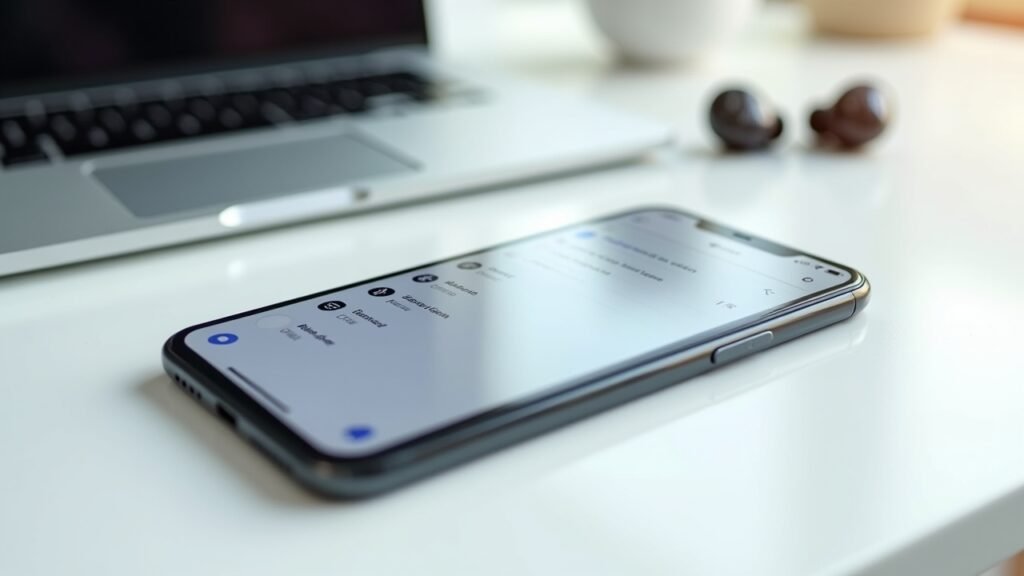
One tip I’ve learned is to check your audio settings after connecting. Right-click the speaker icon in your taskbar and select “Sound settings.” Make sure your AirPods are selected as both the output and input device if you plan on using them for calls or meetings.
Watch This Helpful Tutorial
If you’re more of a visual learner like me, I’d recommend checking out some video tutorials on YouTube. There are tons of great guides that show the exact steps in real-time, which can be super helpful if you’re getting stuck on any particular part of the process.
Your AirPods and Windows Can Be Best Friends

Look, connecting AirPods to a Windows computer isn’t as seamless as using them with an iPhone or Mac. But it’s totally doable, and once you’ve paired them once, they should reconnect automatically in the future. Just remember to put them in pairing mode, make sure Bluetooth is enabled, and don’t give up if it doesn’t work on the first try.
Feel free to experiment with different settings to get the best experience for your specific needs. Every computer setup is slightly different, so what works perfectly for me might need a little tweaking for you. If you found this guide helpful, be sure to check out more tech tips and tutorials over at Fix Fable – we’ve got plenty more where this came from!