Advertisements
Look, I’m gonna be real with you. Last Tuesday, I was in the middle of an important video call when Windows 11 decided to remind me about some random app update. The notification popped up right in the corner of my screen, and my client saw it. Embarrassing doesn’t even begin to cover it!
If you’ve ever been interrupted by those pesky Windows 11 notifications at the worst possible moment, you’re definitely not alone. Whether it’s system alerts, app reminders, or those annoying “tips” Microsoft thinks you need, these pop-ups can seriously mess with your productivity. Let me walk you through how to turn them off once and for all.
The Quick Way to Turn Off All Notifications
Alright, let’s start with the nuclear option. If you want complete silence from your Windows 11 machine, here’s what you gotta do. Head over to Settings by pressing Windows key + I, then click on System followed by Notifications.
At the top of this screen, you’ll see a toggle that says “Notifications.” Just flip that bad boy off, and boom—no more interruptions. I did this during a particularly stressful deadline week, and honestly, it was like a weight lifted off my shoulders. The peace and quiet was incredible.
But here’s the thing I learned the hard way. Turning off everything means you might miss important stuff too. Like that time I missed a critical Teams message because I’d gone full silent mode. So maybe consider a more targeted approach instead.
Customizing Notifications for Specific Apps
This is where it gets actually useful. Instead of blocking everything, you can cherry-pick which apps get to bother you. In that same Notifications settings page, scroll down and you’ll see a list of all your apps.
Click on any app, and you can customize exactly how it notifies you. Want to keep email notifications but ditch the gaming app reminders? Easy peasy. I personally keep my calendar alerts on but turned off everything from the Microsoft Store. Those “recommended app” notifications were driving me absolutely bonkers.
You can also adjust whether notifications show on your lock screen, which is a privacy thing I didn’t think about until my roommate saw a personal message flash on my screen. Lesson learned there!
Using Focus Assist to Schedule Quiet Time
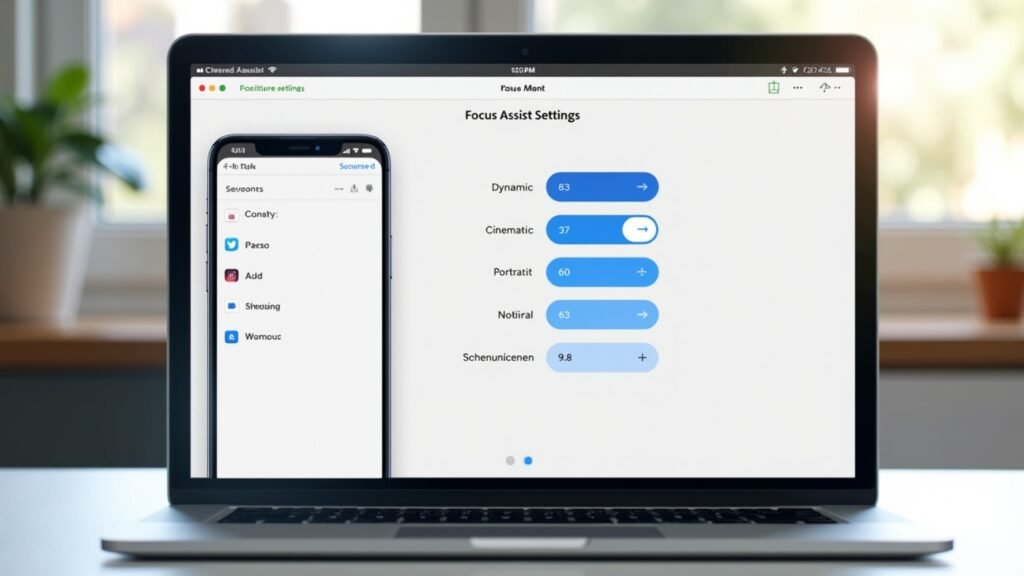
Here’s a feature that doesn’t get enough love. Focus Assist (Microsoft calls it “Do Not Disturb” now in newer updates) lets you automatically silence notifications during certain hours or activities.
Go to Settings, then System, and look for Focus or Focus Assist. You can set it to turn on automatically when you’re playing games, duplicating your display for presentations, or during specific hours. I’ve got mine set to block notifications from 9 AM to 5 PM on weekdays. It’s been a game-changer for my work-from-home setup, no joke.
The cool part is you can set priority notifications, so really important stuff still gets through. Your boss’s emails can still reach you while random app updates get the silent treatment.
Getting Rid of Those Annoying Tips and Suggestions
Oh man, this one drove me crazy for months before I figured it out. Windows 11 loves to give you “helpful” suggestions about features you should try. Spoiler alert: they’re rarely helpful.
To disable these, go to Settings, then System, then Notifications. Scroll to the bottom and uncheck the boxes for “Offer suggestions on how I can set up my device” and “Get tips and suggestions when I use Windows.” While you’re there, uncheck “Show me the Windows welcome experience” too. Trust me on this one.
Quick Video Guide
If you’re more of a visual learner like me, this YouTube tutorial from Windows 11 Help walks through the whole process step by step. Sometimes it’s easier to follow along with someone showing you exactly where to click.
Your Computer, Your Rules
At the end of the day, your Windows 11 experience should work for you, not against you. These notification settings ain’t one-size-fits-all, so play around with different combinations until you find your sweet spot. Maybe you want complete silence, or maybe you just need to quiet down a few noisy apps.
Just remember to periodically check your notification settings, especially after major Windows updates. Microsoft has a habit of resetting some preferences, which is super annoying but manageable if you know where to look. Got more tech questions or want more productivity tips? Check out other posts on Fix Fable for guides that actually make sense!