
How to Find Your WiFi Password (Without Losing Your Mind)
Advertisements
Here’s a fun stat for you — roughly 68% of people have forgotten their WiFi password at some point. I know I have. Multiple times, actually! There’s nothing quite like that sinking feeling when a friend asks for your WiFi password and you just stand there, blinking, like you’ve never heard the word “password” before in your life.
Whether you’ve got a new device, a guest who needs to connect, or you just straight-up forgot what you set it to three years ago, knowing how to find your WiFi password is one of those skills everyone needs. So let me walk you through every method I’ve personally used — including the ones that made me feel like a genius and the ones that made me want to throw my router out the window.
Check the Back of Your Router First
Okay, this sounds embarrassingly obvious, but hear me out. I once spent 45 minutes digging through Windows settings trying to recover my network password. Then my daughter walked over, flipped the router around, and pointed at the sticker on the back. The default WiFi password was right there the whole time.
Most routers come with a default SSID and password printed on a label. If you never changed your wireless password from the factory settings, this is your easiest win. Just look for a label that says “Network Key,” “WPA Key,” or “Wireless Password.”
Of course, if you changed it at some point (which you should for security reasons), this method won’t help. But honestly, it’s always worth checking first.
Find Your Saved WiFi Password on Windows
This is the method I use most often, and it works like a charm on Windows 10 and Windows 11. Here’s what you do:
- Open the Control Panel and go to Network and Sharing Center.
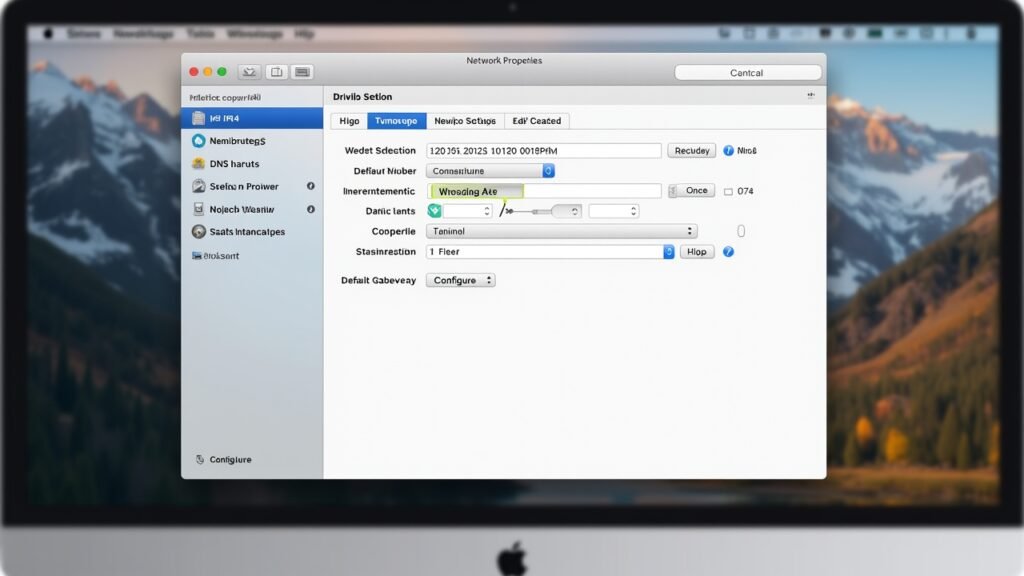
- Click on your connected WiFi network name.
- Hit Wireless Properties, then click the Security tab.
- Check the box that says Show characters — and boom, there’s your password.
You can also use Command Prompt if you’re feeling a little techy. Just open it and type: netsh wlan show profile name=”YourNetworkName” key=clear. Your password will show up next to “Key Content.” I gotta say, the first time I pulled this off I felt like a straight-up hacker.
How to Find WiFi Password on Mac

For my Apple folks, the process is a bit different but still pretty simple. On macOS, your saved passwords are stored in something called Keychain Access.
- Open Keychain Access from your Applications > Utilities folder.
- Search for your WiFi network name in the search bar.
- Double-click the network, then check Show Password.
- You’ll need to enter your Mac’s admin password to reveal it.
I’ll be honest, I forgot my Mac admin password once while trying to do this. That was a whole separate adventure. Don’t be like me — keep your admin credentials somewhere safe.
View WiFi Password on Your Phone
On Android 10 and newer, you can share your WiFi password through Settings > Network > your connected network > Share. It generates a QR code, and the password is usually displayed underneath it.
On iPhone, Apple makes this trickier. Starting with iOS 16, you can finally view saved WiFi passwords directly in Settings > WiFi > tap the info icon next to your network > Password. Before that update, it was was a real pain.
Log Into Your Router’s Admin Panel
If nothing else works, you can always go straight to the source. Type your router’s IP address (usually 192.168.1.1 or 192.168.0.1) into any browser. Log in with your router admin credentials — which are often “admin” and “admin” by default — and navigate to the wireless settings section. Your WiFi password will be displayed there.
Save Yourself the Headache Next Time
Look, we’ve all been there. Forgetting your WiFi password isn’t the end of the world, but it’s definitely annoying. My biggest tip? Write it down somewhere secure or use a trusted password manager so you never have to scramble again.
Also, please don’t go around trying these methods on networks that aren’t yours — that’s a whole different legal territory you don’t want to wander into. Keep it ethical, keep it safe.
If this helped you out, make sure to check out more handy guides over at Fix Fable. We’ve got tons of practical tech tips that’ll save you time and frustration!