Advertisements
I’ll be honest with you—I spent way too long in my life not knowing how to properly take screenshots on Windows. Like, embarrassingly long. I was literally using my phone to photograph my computer screen until about 2019. Yep, that was me!
Screenshots have become essential for work, school, and even just sharing funny memes with friends. Whether you’re capturing an error message for tech support or saving a recipe before the website disappears behind a paywall, knowing how to screenshot on Windows is a skill everyone needs.
The Classic Print Screen Method
Let’s start with the OG method that’s been around forever. The Print Screen key (sometimes labeled PrtScn or PrtSc) is sitting right there on your keyboard, probably collecting dust. When you press it, Windows captures your entire screen and copies it to your clipboard.
Here’s where I messed up for years though. I kept pressing Print Screen and wondering where my screenshot went. Nowhere visible, that’s where! You gotta paste it somewhere—like into Paint, Word, or an email. Just hit Ctrl+V after pressing Print Screen and boom, there’s your image.
For a quicker save, try Windows key + Print Screen. Your screen will briefly dim, and the screenshot gets automatically saved to your Pictures folder in a subfolder called “Screenshots.” Game changer, honestly.
Snipping Tool: Your New Best Friend
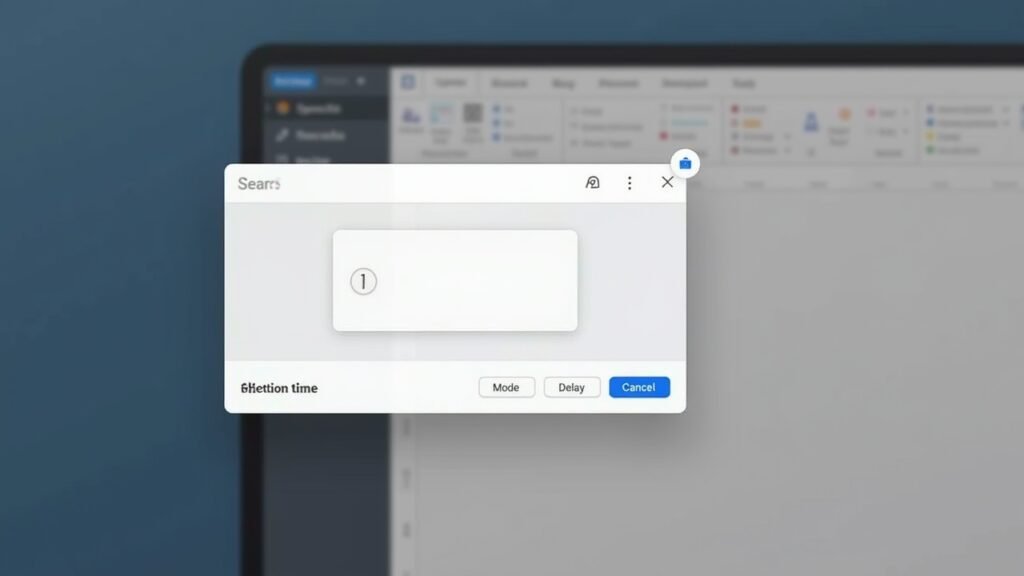
The Snipping Tool is where things get real fun. This little app has been around since Windows Vista, and it’s been updated to be pretty dang powerful. You can find it by typing “Snipping Tool” in your search bar.
What I love about it is the flexibility. You can capture rectangular areas, free-form shapes, specific windows, or the full screen. I use the rectangular snip probably 90% of the time when I only need a portion of my screen.
Pro tip that took me forever to discover: press Windows key + Shift + S to open the snipping toolbar instantly without launching the full app. This shortcut has saved me so much time at work!
Game Bar for More Than Just Games
Windows has a built-in Game Bar that’s secretly awesome for screenshots too. Press Windows key + G to open it up. Don’t let the name fool you—it works for capturing anything on your screen.
The Game Bar is especially handy because it can also record video of your screen. I stumbled upon this when trying to capture gameplay footage, but now I use it for making quick tutorial videos for my coworkers. The screenshot button is right there in the overlay, or you can press Windows key + Alt + Print Screen.
Third-Party Apps Worth Mentioning
Sometimes the built-in tools just don’t cut it. Apps like Greenshot and Lightshot offer extra features like instant editing, annotations, and easy sharing options. I switched to Greenshot a couple years back and haven’t looked back.
These tools let you add arrows, highlight text, blur sensitive info, and upload directly to image hosting sites. Super useful when you’re doing a lot of screenshots for documentation or tutorials.
Watch and Learn

If you’re more of a visual learner like me, checking out video tutorials can really help cement these techniques. There’s tons of great content on YouTube showing exactly how each method works. I’d recommend searching for Windows screenshot tutorials on YouTube to see these methods in action.
Time to Start Capturing
Taking screenshots on Windows doesn’t have to be complicated, and there’s definitely a method that’ll fit your needs. Whether you’re a Print Screen purist or a Snipping Tool enthusiast, the important thing is finding what works for you and your workflow.
Remember to be mindful about what you capture and share—screenshots can accidentally include sensitive information like passwords or personal details. Always double-check before sending!
Got any screenshot tips I missed? We love hearing from readers here at Fix Fable. Check out our other tech guides and tutorials while you’re at it!