Advertisements
I literally threw my phone across the room last month. Not my proudest moment, I’ll admit! Those annoying pop up ads on my Android had finally pushed me over the edge, and I knew something had to change.
If you’re reading this, you’re probably just as fed up as I was. Pop up ads aren’t just irritating—they can slow down your phone, drain your battery, and sometimes even expose you to malware. Let me walk you through everything I learned about blocking these digital pests.
Why Your Android Phone Is Drowning in Pop Ups
Before we fix the problem, we gotta understand why it’s happening. Sometimes it’s a sketchy app you downloaded without thinking. Other times, your browser settings are basically rolling out the red carpet for advertisers.
I once installed a “free flashlight app” that turned my phone into an ad machine. Rookie mistake, right? The thing was infested with adware, and pop ups started appearing even when I wasn’t using the app.
Malicious websites can also trigger these notifications. You might’ve accidentally clicked “allow” on some permission request without realizing what you were agreeing to. We’ve all been there, honestly.
Check Your Chrome Settings First
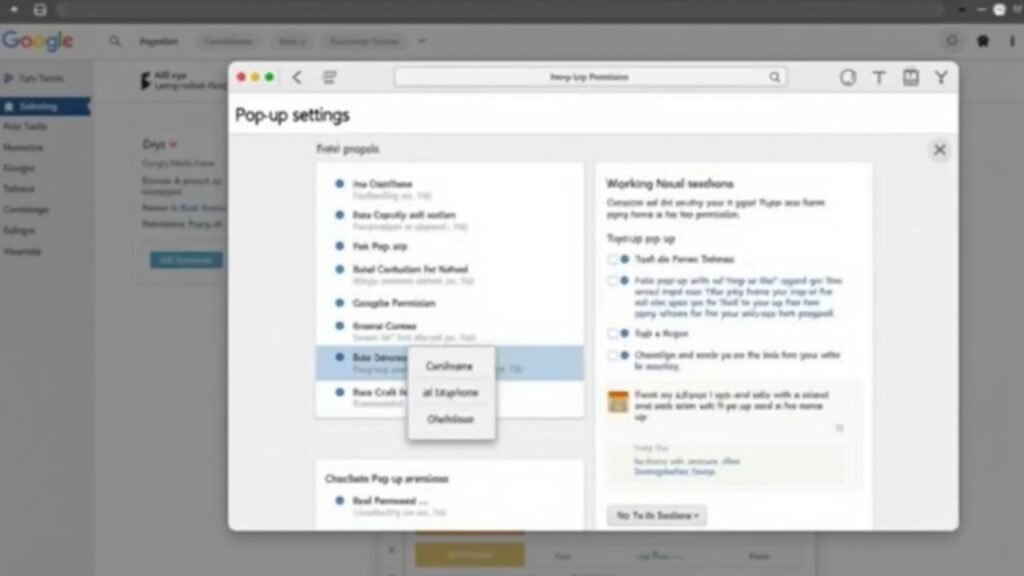
The easiest fix is often right in your browser. Open Chrome and tap those three dots in the corner. Then head to Settings, then Site Settings, and look for Pop-ups and redirects.
Make sure this toggle is switched off. While you’re there, check the Notifications section too. You’d be surprised how many random sites have permission to send you stuff. I found like twelve websites I’d never even heard of with notification access!
Google has a helpful guide on managing pop ups that goes into more detail if you need it.
Hunt Down the Problematic Apps
Here’s where things get detective-y. Go to your Settings, then Apps, and sort by recently installed. If the pop ups started after you downloaded something specific, that’s probably your culprit.
Look for apps with generic names or ones you don’t remember installing. Adware often disguises itself as utility apps or games. Uninstall anything suspicious—your phone will thank you later.
You can also boot your phone into Safe Mode to test if a third-party app is causing the issue. In Safe Mode, only pre-installed apps run. If the pop ups stop, you’ve confirmed it’s an app problem.
Use a Reliable Ad Blocker
I was hesitant about ad blockers at first. Seemed like cheating somehow? But after my flashlight app disaster, I caved and installed one.
AdGuard has been solid for me. It works system-wide, not just in browsers. There’s also Blokada which is free and open-source if you’re into that sort of thing.
These apps filter your network traffic and block ad requests before they even reach your screen. Pretty neat technology when you think about it.
Reset Your Advertising ID
This one’s a pro tip that not many people know about. Go to Settings, then Google, then Ads. You’ll see an option to reset your advertising ID and opt out of ad personalization.
It won’t stop all ads, but it can reduce how aggressively you’re being targeted. Think of it as making yourself less interesting to advertisers.
Watch This for Visual Help
Sometimes seeing the steps makes things clearer. This YouTube video walks through the process nicely: How to Stop Pop Up Ads on Android. Visual learners, I got you covered!
Your Phone Deserves Better
Taking back control of your Android experience feels genuinely liberating. I spent maybe thirty minutes fixing my pop up problem, and now my phone actually works the way it should.
Remember to be careful about what apps you download going forward. Stick to the Play Store, read reviews, and check permissions before installing anything. A little caution goes a long way.
Found this helpful? We’ve got tons more tech tips and troubleshooting guides over at Fix Fable. Come hang out and level up your digital life!