Advertisements
So there I was, deadline looming, coffee in hand, and my laptop keyboard just decided to take a vacation. Not a single key would respond! If you’ve ever experienced that moment of pure panic when your keyboard stops working, you’re definitely not alone. Trust me, this happens way more often than you’d think.
I’ve been through this nightmare multiple times over the years. And honestly, most fixes are surprisingly simple once you know where to look. Let’s walk through everything I’ve learned the hard way.
First Things First: Is It Really Broken?
Before you freak out completely, let’s rule out the obvious stuff. I once spent an embarrassing hour troubleshooting only to realize my cat had accidentally enabled Filter Keys. Yeah, that was a facepalm moment for sure.
Check if your keyboard is locked or if some accessibility feature got turned on by accident. Windows has this sneaky habit of enabling features when you press certain key combinations. Head to Settings > Accessibility > Keyboard and make sure nothing weird is toggled on.
Also, try connecting an external USB keyboard. If that works fine, your laptop keyboard hardware might actually be the culprit. This simple test saved me from buying a whole new laptop once!
The Classic Restart and Driver Dance
I know, I know. “Did you try turning it off and on again?” sounds cliché. But seriously, a proper restart fixes keyboard issues more often than I’d like to admit. Not sleep mode—an actual full shutdown and restart.
If that doesn’t work, outdated or corrupted keyboard drivers are usually the next suspect. Here’s what worked for me:
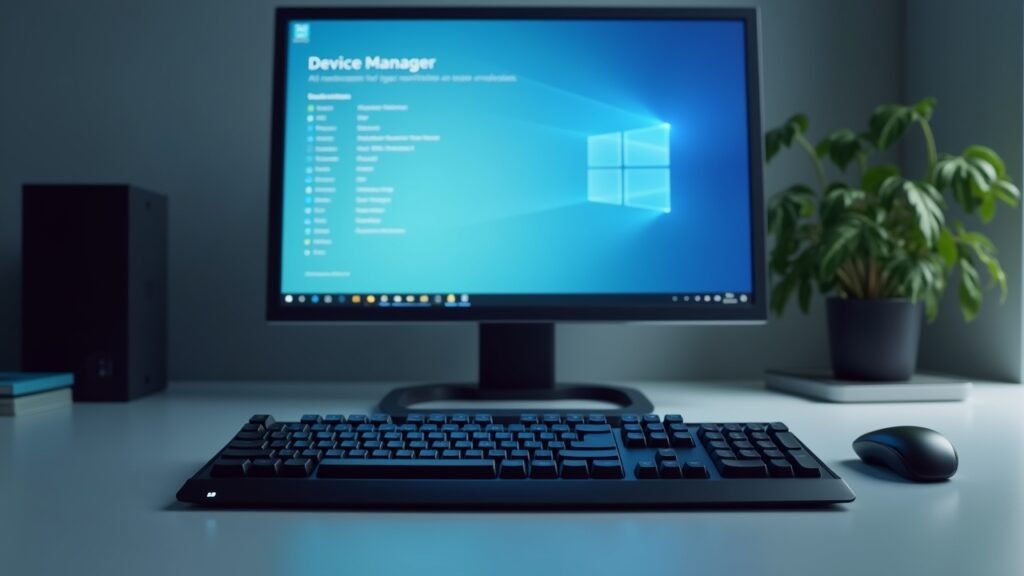
- Right-click the Start button and select Device Manager
- Expand the “Keyboards” section
- Right-click your keyboard and select “Update driver”
- If updating doesn’t help, try “Uninstall device” and restart your computer
Windows will automatically reinstall the driver on reboot. This trick has been my go-to solution probably a dozen times. Microsoft’s official driver update guide walks you through the process if you need more details.
When Physical Cleaning Saves the Day
Here’s a confession: I eat at my desk way too much. Crumbs, dust, and who-knows-what-else get under those keys over time. One day, my spacebar started sticking and then other keys followed suit.
Turn your laptop upside down and gently shake it. You’d be amazed at what falls out! For a deeper clean, use compressed air to blast debris from between the keys. Just be careful not to spray too close or at weird angles.
If you’re feeling brave, some laptop keyboards can be removed for thorough cleaning. But honestly, I’d recommend watching a tutorial specific to your laptop model first. iFixit has fantastic guides for most laptop brands.
A Quick Visual Guide
Sometimes seeing the process helps more than reading about it. This video from NCIX Tech Tips walks through basic laptop keyboard troubleshooting that I’ve found super helpful. Worth bookmarking for future reference!
The BIOS Check Nobody Tells You About
If your keyboard works in BIOS but not in Windows, you’ve got a software issue, not hardware. This was a game-changer when I discovered it. Restart your laptop and press F2, F10, or Delete (depends on your brand) to enter BIOS setup.
Can you type there? Great news—your keyboard is physically fine! The problem’s probably a driver conflict or Windows corruption. A system restore to an earlier point might be your best bet at this stage.

Getting Back to Typing
Look, laptop keyboard problems are frustrating, but they’re rarely the end of the world. Most issues come down to software glitches, dirty keys, or driver problems—all totally fixable without professional help. I’ve probably saved myself hundreds of dollars in repair costs just by trying these basic troubleshooting steps first.
Remember to always backup your important files regularly, regardless of keyboard drama. And if nothing works after trying everything, it might be time to consult a professional or consider keyboard replacement options.
Got more tech headaches you’re trying to solve? We cover all sorts of troubleshooting guides and tips over at Fix Fable. Drop by and see what other problems we can help you tackle!